Compare Products
How to Add Product Compare
The Storefront runs at 3002 and visit localhost:3002/ route for Visiting Home Page , You can add a Product to Compare
1.From the Product card
2.From the Product Details Page
1.Visit localhost:3002
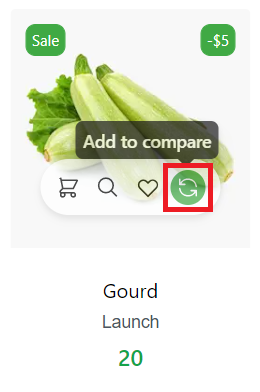
2.Click the Compare Icon from the Product Card
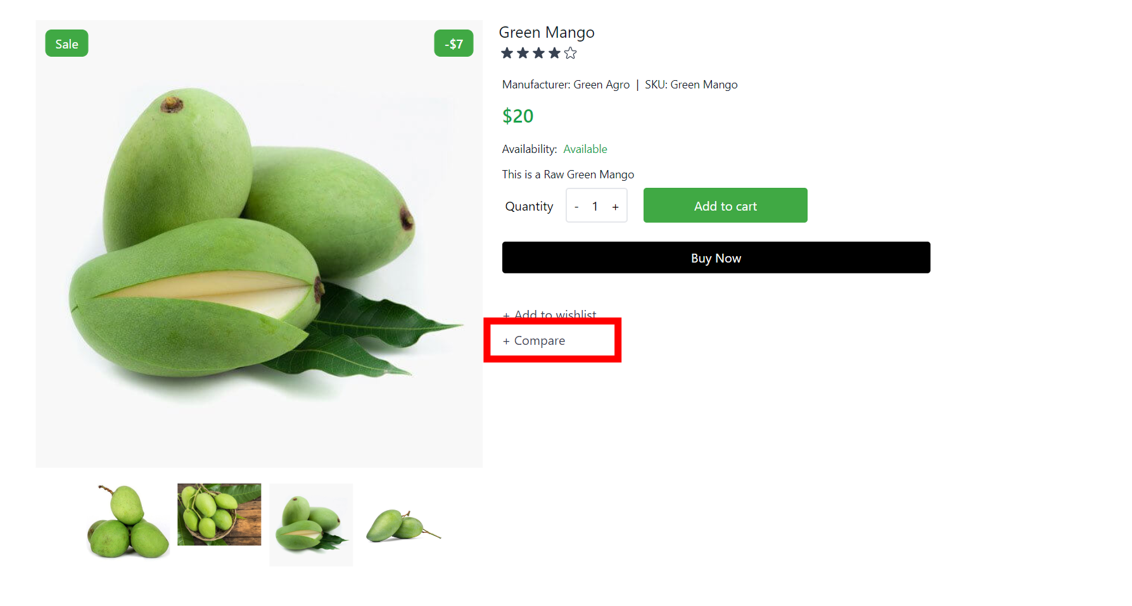
3.Go to the Product Details then Click the Compare Button
Add Products To Compare From Home Page
In the Home Page if you hover over any product, you can see four icons. Click on the Compare icon to add a product to the compare list.
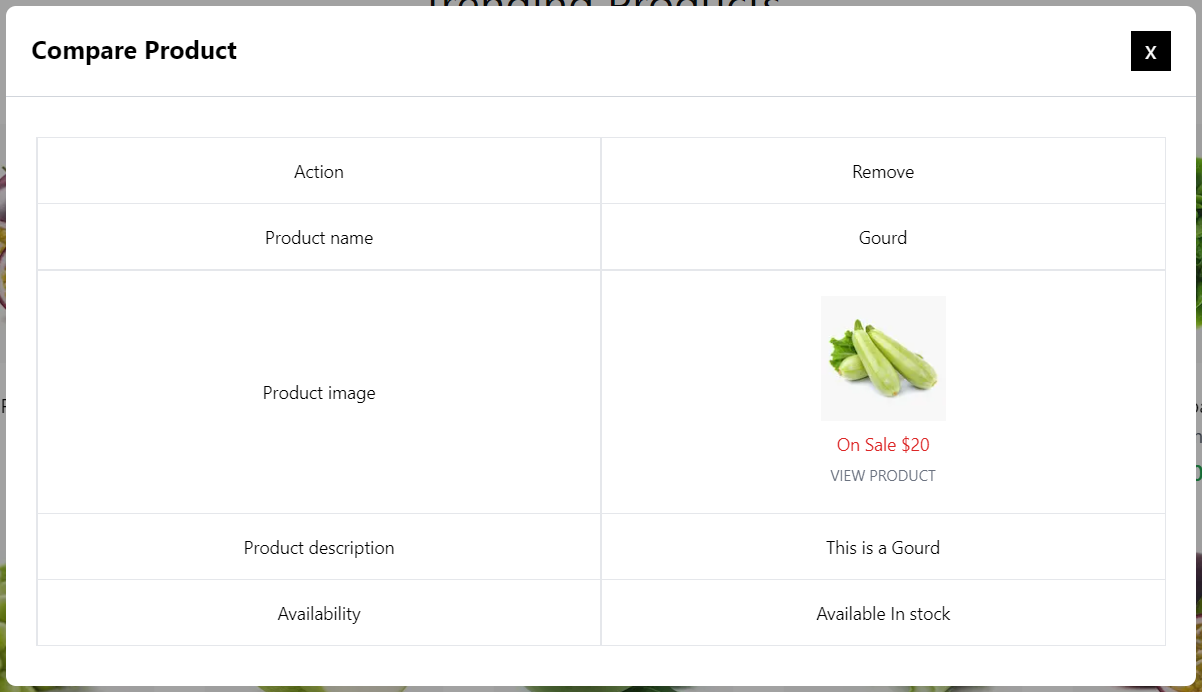
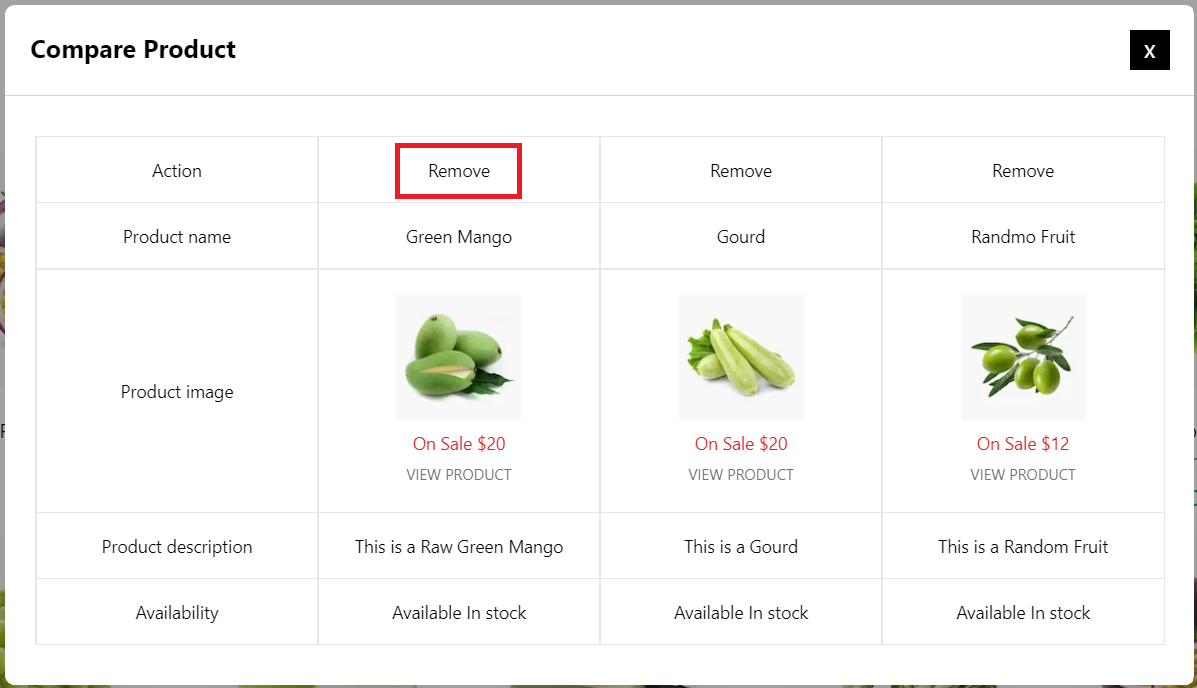
After the Successful addition of Product , A Compare Modal will be shown.
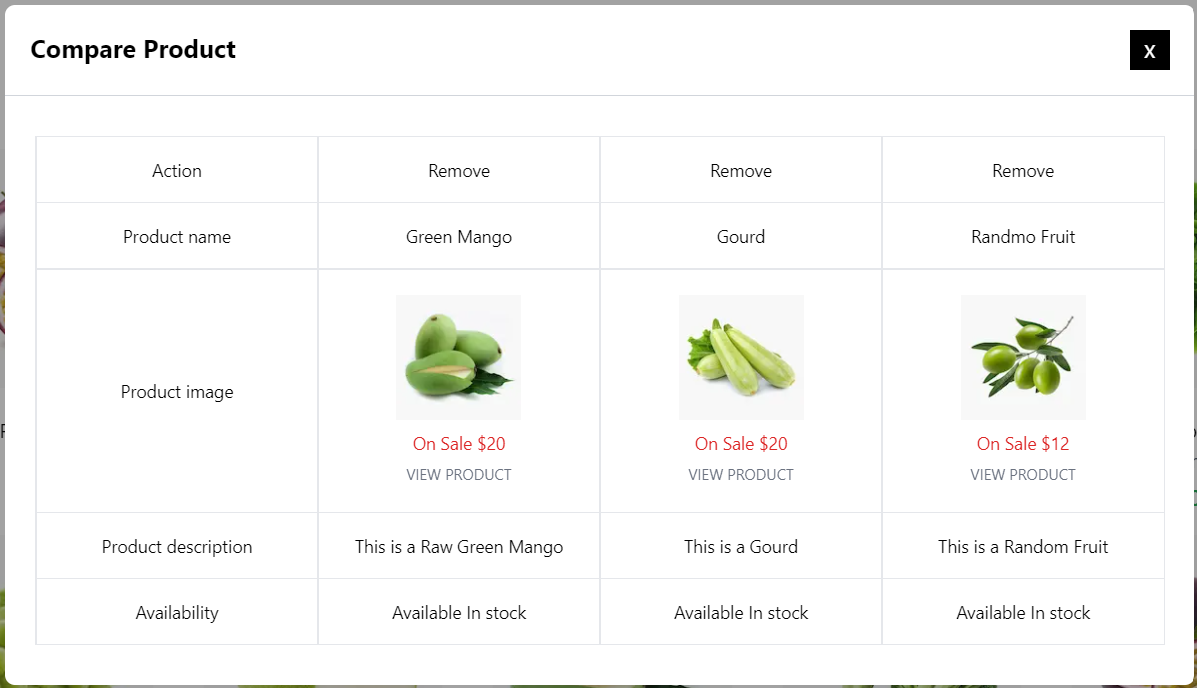
You can add up to three items to compare. Adding a fourth will automatically discard the first item on the list.
Add a Product To Cart From Product Details Page
You can also add a product to the Compare list by clicking on the Compare button from the Product Details page.
Remove an Product From Compare
Click on the Remove button on the top of the modal to remove a product from the Compare list.
Close Compare Modal
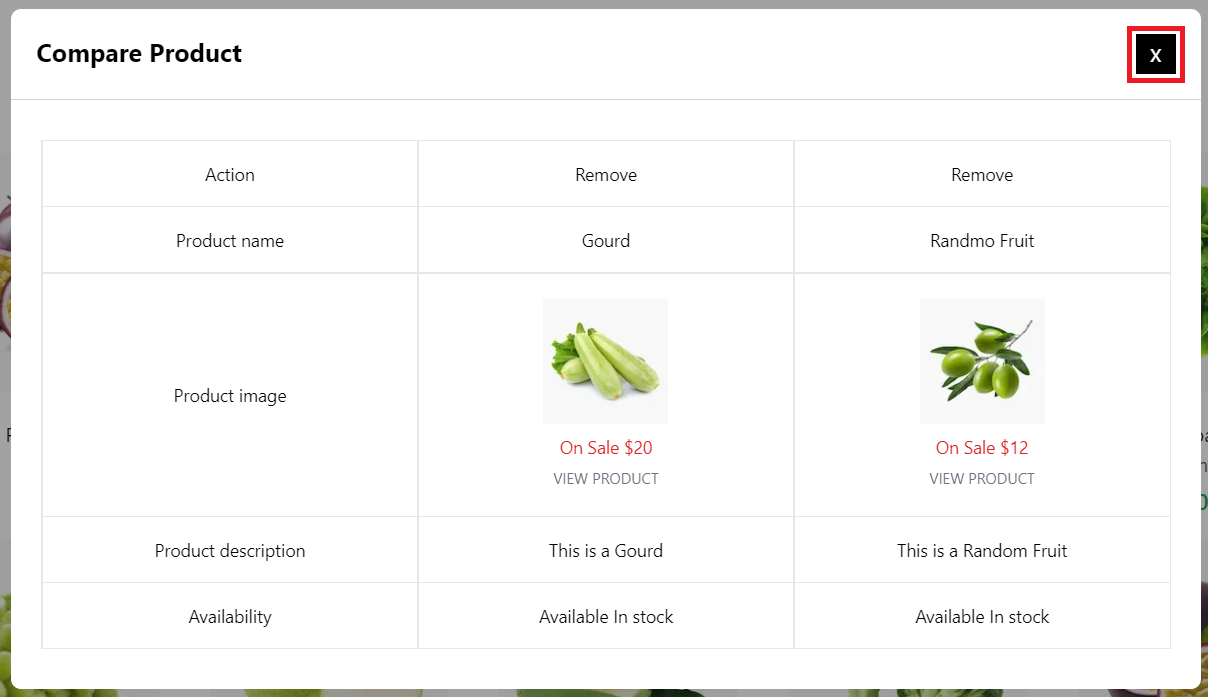
Click on the close (X) button to close the compare modal.